Note, October 2026: Sotion's paid access now runs on Stripe, on the Pro plan. Where this guide says a Sotion site connects to Lemon Squeezy or Gumroad, it describes the older Sotion v1 setup.
Ready to start selling directly from your Sotion site? It's much simpler than you might imagine. The whole process really just involves picking a payment tool you like, hooking it up to Sotion, and then dropping a payment link or button right onto your page. Best of all, you won't touch a single line of code.
This guide will walk you through the entire journey, showing you exactly how to turn those Notion pages into a real, money-making business. We’ll cover the big decisions first, like choosing the right tool for one-time sales versus recurring memberships, all the way to the final checks before you go live. Think of this as your quick-start context to get going with confidence.
The best part? You no longer need a complex development setup or a traditional merchant account to accept payments. Modern platforms like Stripe and Gumroad do all the heavy lifting, letting you focus on what you're selling. And for Sotion users, the integration is incredibly smooth.
Jumping on this is more important than ever. By 2028, digital payments are projected to handle a staggering 79% of all e-commerce transactions worldwide. That’s a huge jump from just 34% back in 2014. For anyone selling premium content with Sotion, having a slick payment process isn't just nice—it's essential.
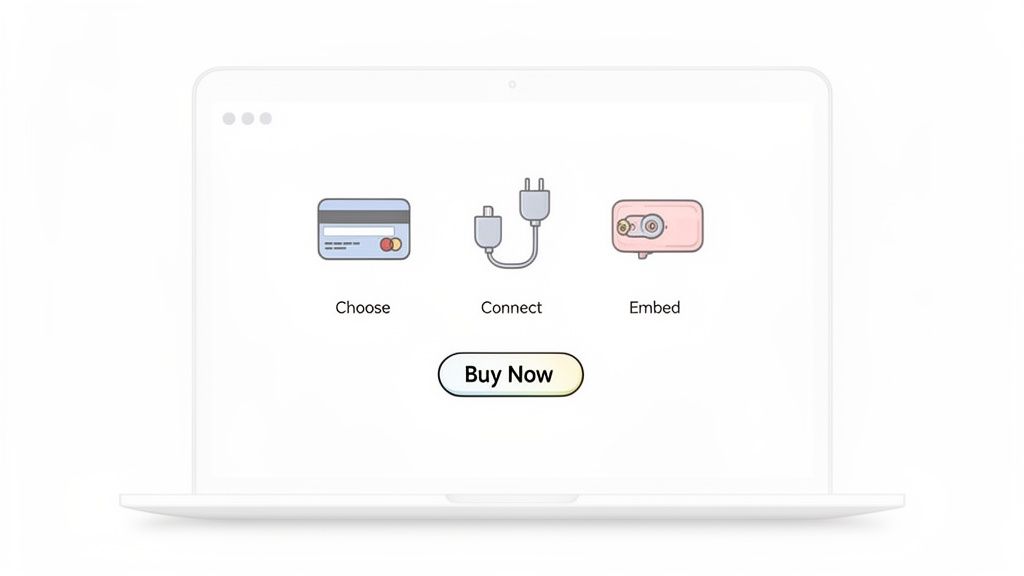
So, what does this actually look like in practice? It's a simple, no-code workflow.
This straightforward, no-code process is exactly what makes building a business on Notion so powerful. You can literally go from a simple idea to a live product with a fully working payment system in just an afternoon.
If you’re just starting out, our complete guide on how to build a website on Notion is a great place to lay the foundation before you dive into payments. This is all about making technology work for you, not the other way around, so you can monetize your passion without hitting technical walls.
To give you a clearer picture, here’s a quick summary of the main steps you'll be taking.
This table breaks down the core tasks involved in setting up payments on your site and highlights how Sotion simplifies each step.
| Action | What It Involves | Sotion Simplification |
|---|---|---|
| Choose a Payment Provider | Researching platforms like Stripe or Gumroad to find the best fit for your products, fees, and features (e.g., subscriptions, tax handling). | Sotion integrates with the most popular, no-code-friendly providers, so your choice is always compatible. |
| Configure Your Product | Logging into your chosen provider to define what you're selling, set the price, and customize the checkout experience for your customers. | Once you create your product, the provider gives you a simple link or embed code that works instantly with Sotion. |
| Connect & Embed | Taking the payment link or embed code from your provider and adding it directly to your Notion page where you want the "Buy" button to appear. | This is a simple copy-and-paste action. No APIs, no webhooks, no code required to get your payment form live. |
As you can see, the heavy technical lifting is handled by the payment provider, while Sotion ensures the connection to your Notion site is seamless and immediate.